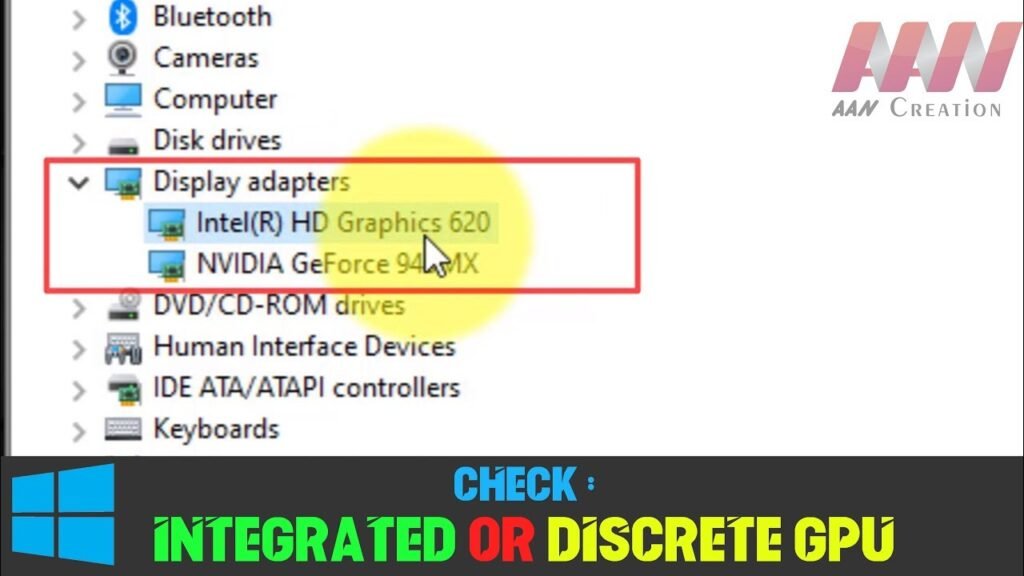

Many laptops have two graphics chips: a power-saving integrated GPU (built into the Intel or AMD processor) and a faster dedicated GPU (such as NVIDIA GeForce or AMD Radeon). Windows decides which one each app uses. If a game runs badly, it may be stuck on the integrated chip.
Here’s how to check, and how to pick the GPU yourself. The steps work on Windows 11 and Windows 10.
See which GPUs your PC has
- Press Ctrl + Shift + Esc to open Task Manager.
- Click Performance.
- Look for GPU 0 and GPU 1 in the list. The name of each chip appears at the top right when you click it.
Usually the Intel UHD/Iris or AMD Radeon Graphics entry is the integrated one, and the GeForce or Radeon RX entry is dedicated.
Check which GPU an app is using
- In Task Manager, open the Processes tab.
- Right-click any column header (for example Name or CPU).
- Tick GPU engine.
- Start your game or app and look at the new column. It shows values such as GPU 0 – 3D or GPU 1 – 3D.
Match the GPU number with the names you saw on the Performance tab. You can also add the GPU column to see how hard each app is using the graphics chip.
Choose the GPU for an app
- Open Settings > System > Display.
- Scroll down and click Graphics.
- Find your app in the list. If it’s missing, use the add or browse option to add the app’s .exe file.
- Click the app (or its Options button) and choose Power saving for the integrated GPU or High performance for the dedicated GPU.
- Restart the app so the change takes effect.
Useful tips
- Plug in your laptop when gaming. Some laptops limit the dedicated GPU on battery.
- NVIDIA and AMD control panels also have per-app GPU settings. If both are set, the driver setting can override Windows.
- Run
dxdiagfrom Windows + R and check the Display tabs for full details of each GPU and driver.
Frequently asked questions
Why is my external monitor always using the dedicated GPU?
On many gaming laptops, the HDMI or USB-C port is wired directly to the dedicated GPU. Anything shown on that screen uses it.
I only see one GPU. Is something wrong?
Not necessarily. Many PCs have only one GPU. If you expected two, check Device Manager under Display adapters and update the graphics drivers.