
When your PC feels slow with many apps open, memory (RAM) is often the reason. Microsoft PC Manager is a free app from Microsoft with a one-click Boost button that frees up memory and clears temporary files. It’s a quick, safe way to get a little speed back without restarting.
Install Microsoft PC Manager
- Open the Microsoft Store.
- Search for Microsoft PC Manager and check that the publisher is Microsoft Corporation.
- Click Get or Install. Availability can differ by region.
Use the one-click Boost
- Open PC Manager from the Start menu.
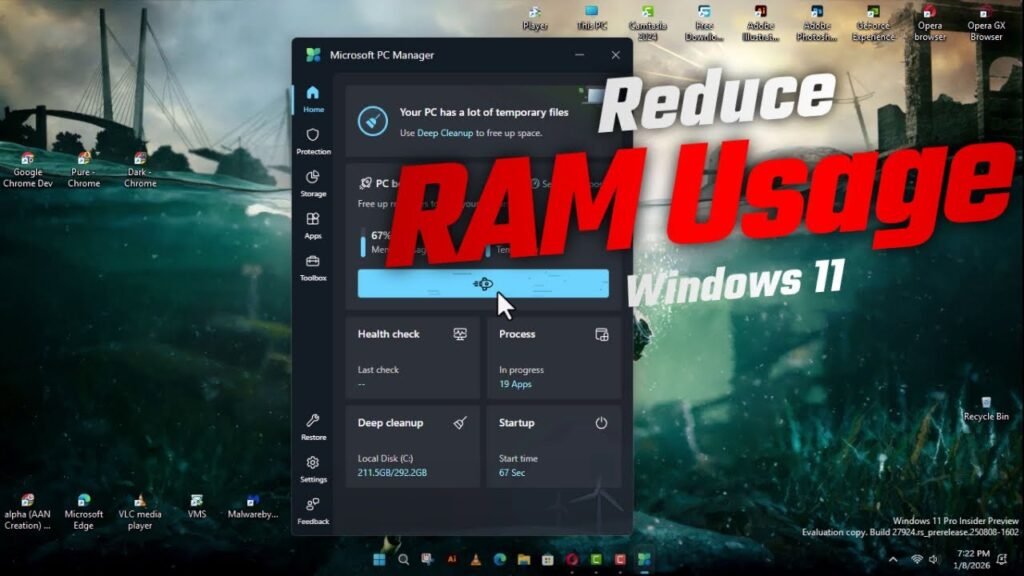
- On the Home page, look at the memory usage and temporary file numbers.
- Click Boost.
- Wait a few seconds. PC Manager shows how much memory and how many temporary files were cleared.
PC Manager can also show a small floating toolbar or a taskbar shortcut, so you can boost without opening the main window. Look for these options in the app’s settings.
What Boost actually does
- Asks background processes to release memory they aren’t using right now.
- Removes some temporary files.
- Does not close your open apps or delete personal files.
The effect is short-term. If apps need the memory again, they’ll use it again. Windows already manages RAM well, so Boost helps most when one app has been holding a lot of memory.
Other useful PC Manager tools
- Deep cleanup: finds larger junk such as old update files and caches.
- Process management: shows heavy apps you can close.
- Startup apps: turns off programs that slow down booting.
Longer-term ways to reduce RAM use
- Close browser tabs you don’t need. In Edge, Sleeping tabs (Settings > System and performance) frees memory automatically.
- Check Task Manager (Ctrl + Shift + Esc) and sort the Processes tab by Memory to find the biggest users.
- Restart your PC every few days so updates finish and memory is fully cleared.
- If you regularly use more than 80% of RAM, consider adding more memory.
Frequently asked questions
Is PC Manager safe?
Yes, when installed from the Microsoft Store. It’s made by Microsoft and doesn’t remove personal files during Boost.
How often should I use Boost?
Only when the PC feels slow. Pressing it constantly won’t make Windows faster, because Windows reuses free memory for caching anyway.