
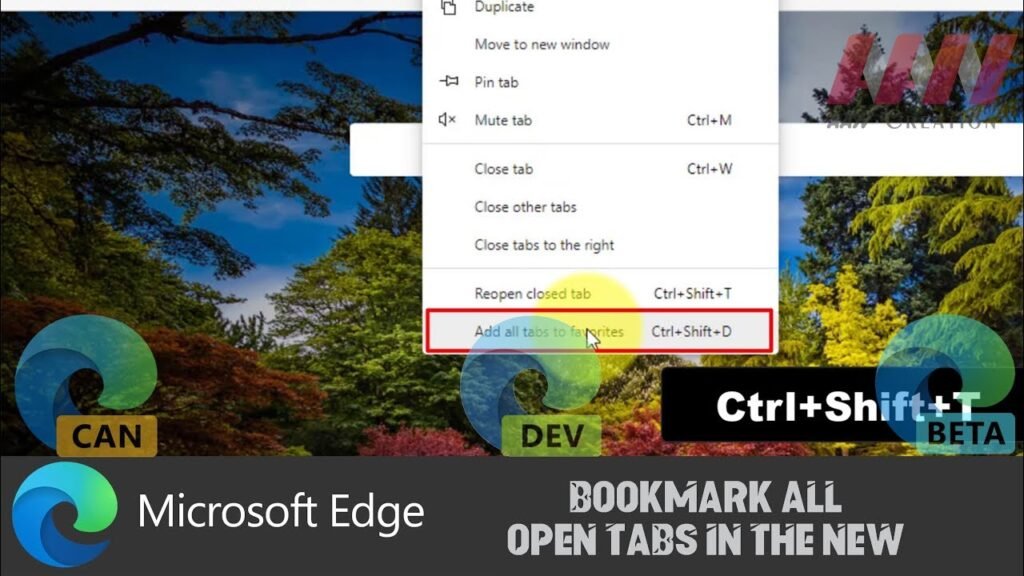

Researching something with ten tabs open and need to stop for the day? Instead of saving each page one by one, Microsoft Edge can save all open tabs to a new favorites folder at once. Later you can reopen the whole set with one click.
Save all tabs with a right-click
- Right-click any open tab at the top of the Edge window.
- Choose Add all tabs to favorites.
- Type a name for the new folder, such as “Holiday research”.
- Choose where to save the folder, for example Favorites bar or Other favorites.
- Click Save.
Use the keyboard shortcut
Press Ctrl + Shift + D. The same save dialog opens. Name the folder and click Save.
Only tabs in the current window are saved. If you have several Edge windows, repeat the steps in each one.
Reopen all saved tabs
- Press Ctrl + Shift + O to open Favorites, or click the star icon with lines in the toolbar.
- Right-click the folder you created.
- Choose Open all, Open all in new window or Open all in new InPrivate window.
If the folder is on the favorites bar, you can right-click it there too.
Other ways to keep your tabs
- Continue where you left off: in Settings > Start, home, and new tabs, choose to open tabs from the previous session when Edge starts.
- Collections: save pages into a collection with notes. Find it in the toolbar or the three-dot menu.
- Workspaces: on newer versions, Edge Workspaces keep groups of tabs together and can be shared with others.
- Reopen closed tabs: press Ctrl + Shift + T to bring back the last closed tab or window.
Useful tips
- Show the favorites bar with Ctrl + Shift + B so your saved folders are always one click away.
- Turn on Favorites in Settings > Profiles > Sync to see the folder on your other devices.
Frequently asked questions
Are pinned tabs saved too?
Yes. All tabs in the window, including pinned tabs, are added to the new folder.
Does this work in Google Chrome?
Yes. In Chrome, right-click a tab and choose the option to bookmark all tabs, or press Ctrl + Shift + D.

