
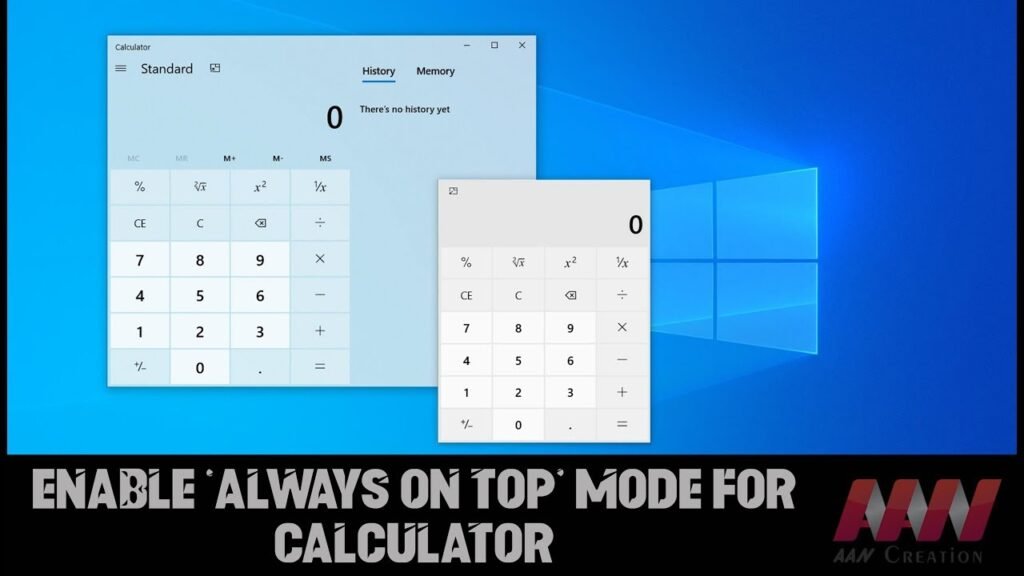

When you copy numbers from a web page or spreadsheet, the Calculator keeps hiding behind other windows. The Windows Calculator app has a built-in Keep on top mode that shows a small calculator floating above everything else. It works on Windows 11 and Windows 10.
How to turn on Keep on top
- Open the Start menu, type Calculator and open it.
- Make sure you’re in Standard mode. If not, click the menu button (three lines) at the top-left and choose Standard.
- Click the Keep on top icon next to the word Standard at the top. It looks like a small window with an arrow.
The Calculator shrinks into a compact window that stays above all other apps, even when you click on another window.
Use the compact calculator
- Move it: drag the top of the window to any corner of the screen.
- Resize it: drag an edge or corner to make the buttons bigger or smaller.
- Type numbers: click the calculator first, then use your keyboard’s number keys and symbols. Press Enter for equals and Esc to clear.
- Copy the result: press Ctrl + C to copy the answer, then paste it anywhere with Ctrl + V.
How to turn it off
Click the Back to full view icon at the top of the compact calculator. It’s in the same place as the Keep on top button. The Calculator returns to its normal size and behaves like any other window.
If you don’t see the Keep on top button
- The button only appears in Standard mode. Scientific, Programmer and the converters don’t support it.
- Update the app: open the Microsoft Store, go to Library and click Get updates.
- If Calculator is broken, go to Settings > Apps > Installed apps, find Calculator, open Advanced options and click Repair or Reset.
Useful tips
- Press Ctrl + H in full view to show your calculation history.
- Pin Calculator to the taskbar so it’s one click away: right-click its icon and choose Pin to taskbar.
- Other apps can’t be kept on top with a Windows setting, but Microsoft’s free PowerToys app has an Always On Top tool that works with any window.
Frequently asked questions
Does Keep on top work in Scientific mode?
No. It’s only available in Standard mode. Switch to Standard first.
Does the calculator remember the mode next time?
The Calculator usually opens in the last mode you used, but you may need to click Keep on top again after reopening it.

