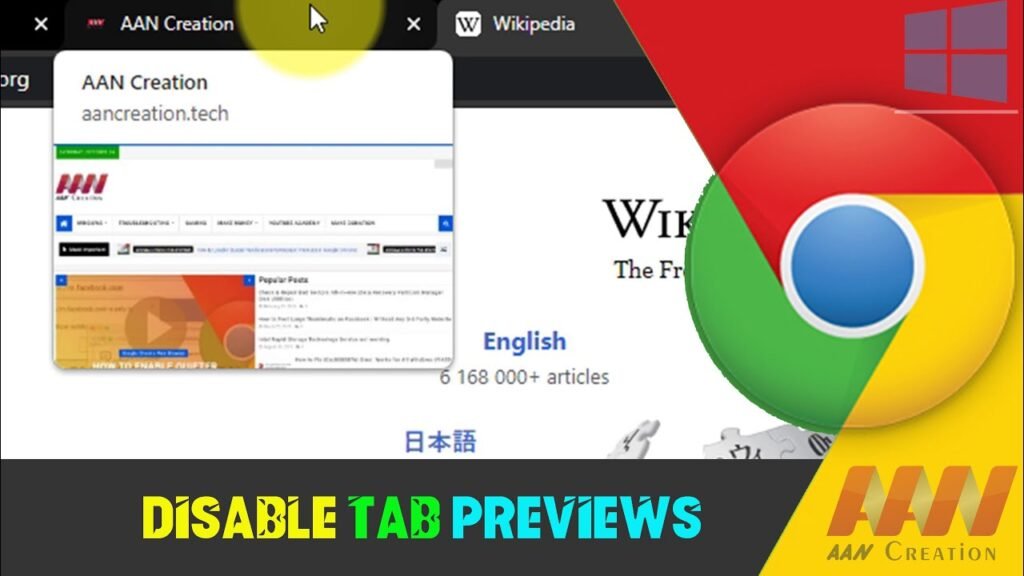

When you move your mouse over a tab in Google Chrome, a small card pops up with the page title, the website and often a picture of the page. Some people find this distracting, especially with many tabs open. Older guides used a hidden flag to turn it off, but that flag has been removed. Today, Chrome has a normal setting for the preview image.
How to turn off tab preview images
- Open Chrome and click the three-dot menu in the top-right corner.
- Choose Settings.
- Click Appearance in the left menu.
- Find the option for showing images on tab hover preview cards and turn it off.
If you can’t find it, type preview in the search box at the top of the Settings page. Chrome highlights the matching option.
What still appears after you turn it off
The hover card itself stays, but it only shows the page title and website address, without the screenshot. Chrome doesn’t currently offer a normal setting to remove the hover card completely.
Memory usage on hover cards
In recent versions, the hover card can also show how much memory a tab uses. If you’d rather not see it, open Settings > Performance and look for the tab hover memory option.
Tips for working with many tabs
- Tab search: press Ctrl + Shift + A to find an open tab by name.
- Tab groups: right-click a tab and choose Add tab to new group to keep related tabs together.
- Memory Saver: in Settings > Performance, turn on Memory Saver so inactive tabs use less RAM.
Frequently asked questions
Why don’t I see the preview image setting?
Your Chrome may be out of date, or your organisation may manage the browser. Update Chrome from Settings > About Chrome and check again.
Does turning off previews make Chrome faster?
The difference is small. Chrome doesn’t need to create preview pictures, but you’re unlikely to notice a speed change on most PCs.
Can I still see which page a tab shows without previews?
Yes. The hover card still shows the page title and the website address. Pinning important tabs (right-click a tab > Pin) also keeps them easy to find.