
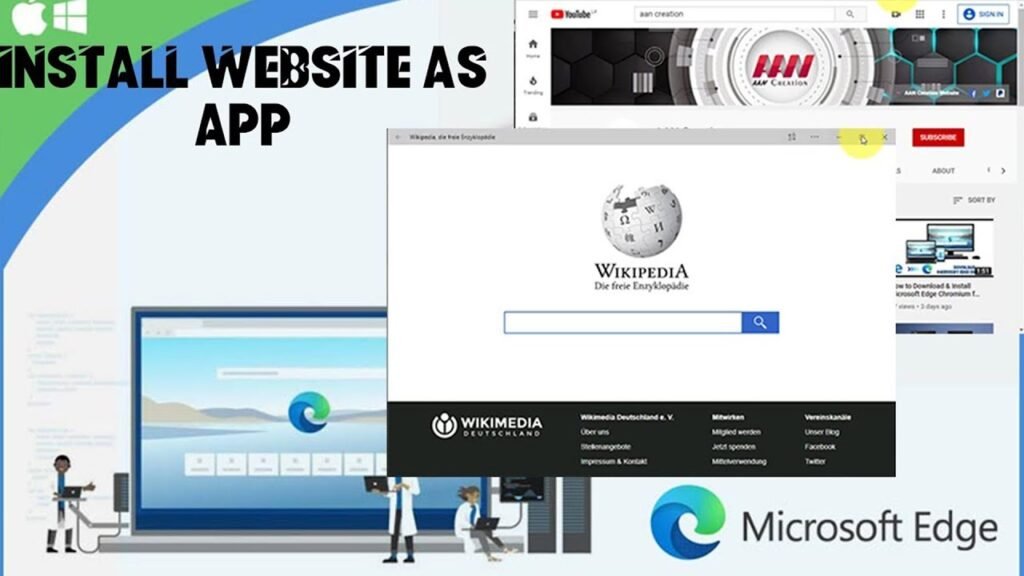

Some websites, like YouTube, Outlook or a project tool, are easier to use as their own app. Microsoft Edge can install any website as an app. It opens in a separate window without tabs or an address bar, and you can pin it to the taskbar and Start menu like a normal program.
How to install a website as an app
- Open Microsoft Edge and go to the website.
- Click the three-dot menu (Settings and more) in the top-right corner.
- Choose Apps > Install this site as an app.
- Change the name if you want and click Install.
- Edge may ask whether to pin the app to the taskbar, pin it to Start, create a desktop shortcut or start it when you sign in. Tick what you need and click Allow.
Some sites are full web apps and show an App available icon in the address bar. Click it, then click Install.
How to open and manage your installed apps
- Type
edge://appsin the address bar and press Enter. - Here you see all installed site apps. Click one to open it.
- Click Details or the three-dot button next to an app to pin it, change its settings or uninstall it.
How to uninstall a site app
- Open the app, click the three-dot menu in the app window and choose Uninstall.
- Or go to Settings > Apps > Installed apps in Windows, find the app and choose Uninstall.
Why use site apps?
- They don’t get lost among dozens of tabs.
- You can switch to them with Alt + Tab like any other program.
- Some apps can show notifications and work partly offline.
Frequently asked questions
Do site apps share my Edge login?
Yes. They use the same Edge profile, so you stay signed in to the website and your passwords and cookies are shared.
Can I do this in Google Chrome?
Yes. In Chrome, click the three-dot menu > Cast, save, and share > Install page as app (or Create shortcut and tick Open as window).
Do site apps take up a lot of space?
No. A site app is mostly a shortcut that opens the website in its own Edge window. It uses about the same memory and disk space as a normal tab.

