
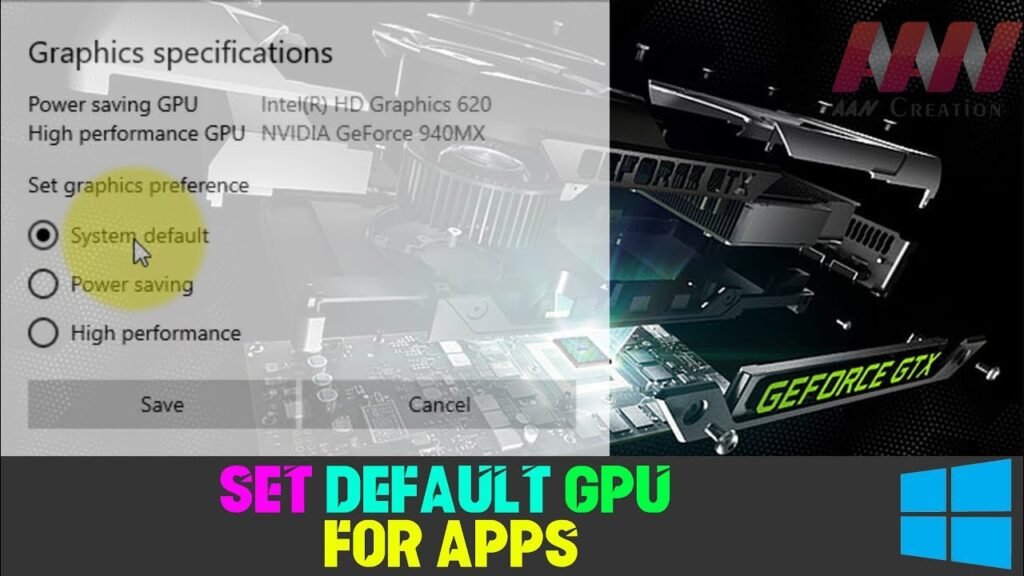

Many laptops and some desktops have two graphics processors: a power-saving one built into the CPU and a more powerful dedicated card from NVIDIA or AMD. Windows usually picks the right one, but not always. If a game runs slowly, it may be using the weaker GPU. You can set the GPU for each app yourself.
Set the GPU for an app on Windows 11
- Open Settings > System > Display.
- Scroll down and click Graphics.
- Find your app in the list. If it’s not there, click Browse (or Add desktop app) and select the program’s
.exefile. For Store apps, choose the Microsoft Store app option instead. - Click the app, then choose a GPU preference:
- Let Windows decide
- Power saving: usually the built-in GPU
- High performance: usually the dedicated GPU
- Click Save if a button appears, then restart the app.
On Windows 10
Go to Settings > System > Display > Graphics settings. Choose Desktop app or Microsoft Store app, click Browse to add the program, then click Options and pick High performance or Power saving.
Which GPU should you choose?
- High performance: games, video editors, 3D and AI tools.
- Power saving: browsers, office apps and chat apps, to save battery.
Check that it worked
Open Task Manager (Ctrl + Shift + Esc), go to the Processes tab, right-click a column header and turn on GPU engine. While the app runs, this column shows whether it uses GPU 0 or GPU 1.
Tips
- Plug in your laptop when gaming. On battery, some laptops limit the dedicated GPU.
- NVIDIA Control Panel and AMD Software also have per-app GPU settings. The Windows setting usually takes priority.
Frequently asked questions
Why do both options show the same GPU?
Your PC has only one GPU, or the dedicated GPU’s driver isn’t installed. Install the latest driver from NVIDIA or AMD.
Can I set a default GPU for all apps?
Windows doesn’t offer one global switch for all apps. You set it per app, or leave apps on Let Windows decide.
Do I need to set this again after a driver update?
Usually not. Windows remembers the setting for each app. After a big Windows update or a game update that changes the program file, check the Graphics page again.

