
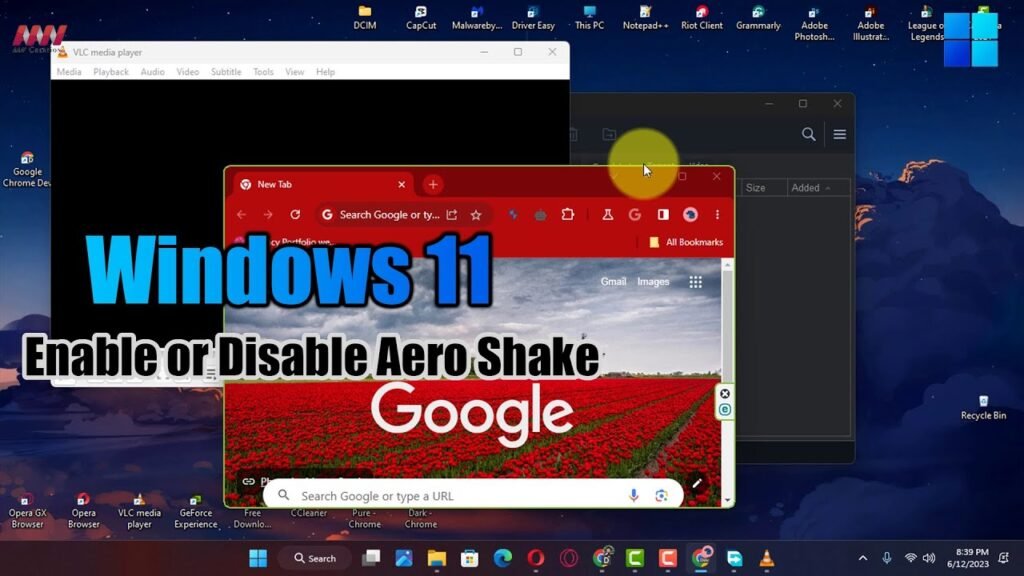

Aero Shake is an old Windows trick: grab a window by its title bar and shake it, and every other window minimises. Shake it again and they all come back. In Windows 11 it is off by default, so many people don’t know it exists. Others turn it on by accident and wonder why their windows disappear.
Turn Aero Shake on or off
- Press Windows + I to open Settings.
- Go to System > Multitasking.
- Find Title bar window shake.
- Switch it On to use the feature, or Off to disable it.
The change applies immediately, with no restart.
How to use Aero Shake
- Click and hold the title bar of the window you want to keep (the top strip with the window name).
- Move the mouse quickly left and right a few times.
- All other windows minimise to the taskbar.
- Shake the same window again to restore them.
Keyboard alternatives
- Windows + Home minimises all windows except the active one, the same as a shake. This shortcut works when Title bar window shake is turned on.
- Windows + D shows the desktop by minimising everything. Press it again to bring windows back.
- Windows + M minimises all windows.
Windows 10
In Windows 10, Aero Shake is controlled under Settings > System > Multitasking in newer versions. In older versions, it is turned on together with window snapping.
Frequently asked questions
Why do my windows suddenly minimise when I move one?
You probably shook the window slightly while dragging it, and Aero Shake is on. Turn off Title bar window shake to stop it.
Does Aero Shake work with a touchpad?
Yes. Press and hold on the title bar, then move quickly left and right with your finger on the touchpad.

