
File Explorer is fine for basic tasks, but it can feel slow when you move lots of files every day. It has no dual-pane view, limited keyboard control and few ways to customise the layout. A different file manager can save you a lot of clicks.
Here are three free alternatives that run alongside File Explorer, so you can try them without changing anything in Windows.
1. Files
Files is a modern, open-source file manager that looks like a natural part of Windows 11. It’s a good choice if you like File Explorer’s style but want more power.
- Tabs, dual-pane mode and a column view, similar to macOS Finder.
- Built-in preview pane for images, videos, documents and code.
- Support for tags, so you can colour-code files across folders.
- Open and create ZIP and other archive files.
You can install Files from the Microsoft Store or its official website. It uses more memory than File Explorer, so it suits PCs with at least 8 GB of RAM.
2. OneCommander
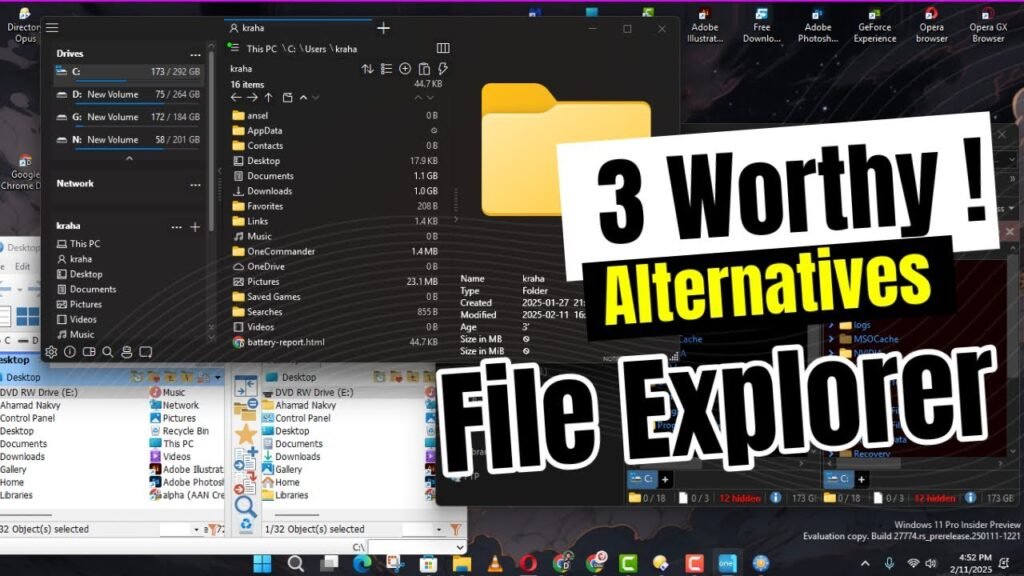
OneCommander is free for personal use and built for speed. Its column browser shows the folder path as a row of panels, so you can see where you are and jump back up in one click.
- Two-pane layout that makes copying between folders easy.
- Recent folders and favourites in a side panel.
- File previews, themes and a built-in batch renamer.
It’s also available in the Microsoft Store.
3. Double Commander
Double Commander is a free, open-source “orthodox” file manager with two side-by-side panels. It’s inspired by Total Commander and is ideal if you prefer the keyboard over the mouse.
- Function keys for common tasks, such as F5 to copy and F6 to move.
- Powerful multi-rename tool and folder comparison.
- Built-in viewer and support for archives and FTP.
It looks more old-fashioned than the other two, but it’s very fast, even on older PCs.
How to choose
- Pick Files if you want a modern design and a familiar feel.
- Pick OneCommander if you jump between many folders and like column browsing.
- Pick Double Commander if you move large batches of files and like keyboard shortcuts.
Download apps only from the Microsoft Store or the developer’s official site, not from random download portals.
Frequently asked questions
Will these apps replace File Explorer completely?
No. File Explorer stays installed and Windows still uses it for the desktop and some dialogs. The new app simply becomes another way to browse your files.
Are they safe to use?
All three are well-known projects. As with any app, install them from official sources and keep them updated.