
Potentially unwanted apps (PUAs) aren’t always viruses, but they cause real problems. Think of free programs that sneak in toolbars, change your browser’s home page, show ads or install crypto miners. Microsoft Defender can block this kind of software, but on many PCs the protection is not fully turned on.
The steps below work on Windows 11 and Windows 10.
Turn on PUA blocking in Windows Security
- Open the Start menu, search for Windows Security and open it.
- Click App & browser control.
- Under Reputation-based protection, click Reputation-based protection settings.
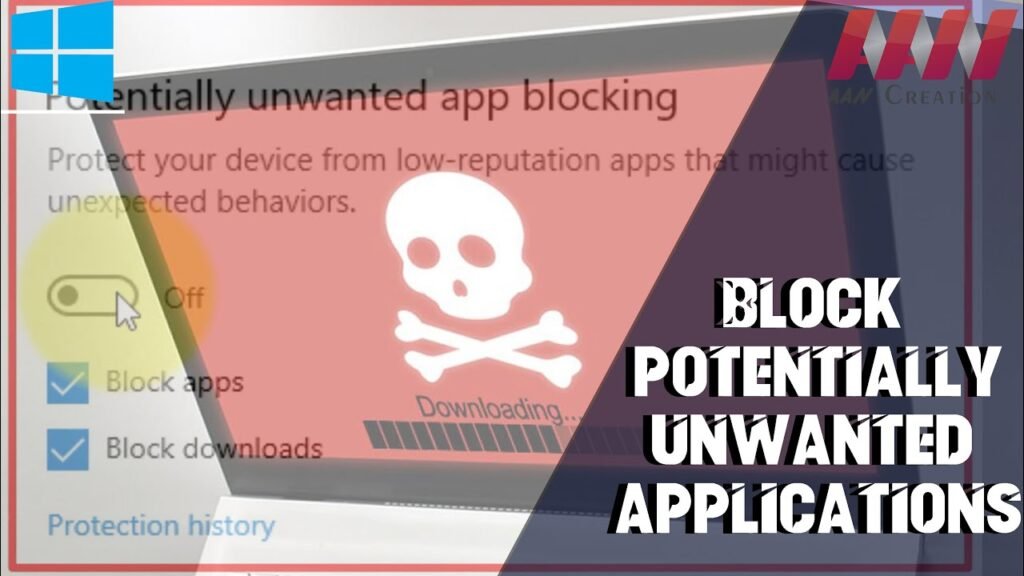
- Turn on Potentially unwanted app blocking.
- Make sure both Block apps and Block downloads are checked.
Block apps lets Defender detect and quarantine PUAs on your PC. Block downloads stops them in Microsoft Edge before the file finishes downloading.
Turn it on with PowerShell
If you prefer the command line, open Terminal (Admin) by right-clicking the Start button, then run:
Set-MpPreference -PUAProtection EnabledTo check the current setting, run:
Get-MpPreference | Select-Object PUAProtectionA value of 1 means enabled, 0 means disabled and 2 means audit mode (detections are logged but not blocked).
What happens when an app is blocked
When Defender catches a PUA, you’ll see a notification. The app is moved to quarantine. To review it, go to Windows Security > Virus & threat protection > Protection history. If you’re sure the app is safe, you can choose to allow it from there.
Tips
- Download software from official websites or the Microsoft Store.
- During installs, choose Custom setup and uncheck extra offers.
- Run a quick scan after turning on PUA blocking to find anything already installed.
- Check Settings > Apps > Installed apps for programs you don’t remember installing, and remove them.
Frequently asked questions
Does PUA blocking work in Chrome or Firefox?
The Block downloads option works with Microsoft Edge. With other browsers, Block apps still catches the PUA when you save or run it on your PC.
Why is the setting greyed out?
If another antivirus is installed, Defender’s real-time protection is turned off, so these options may not be available. On work or school PCs, an administrator may control the setting.