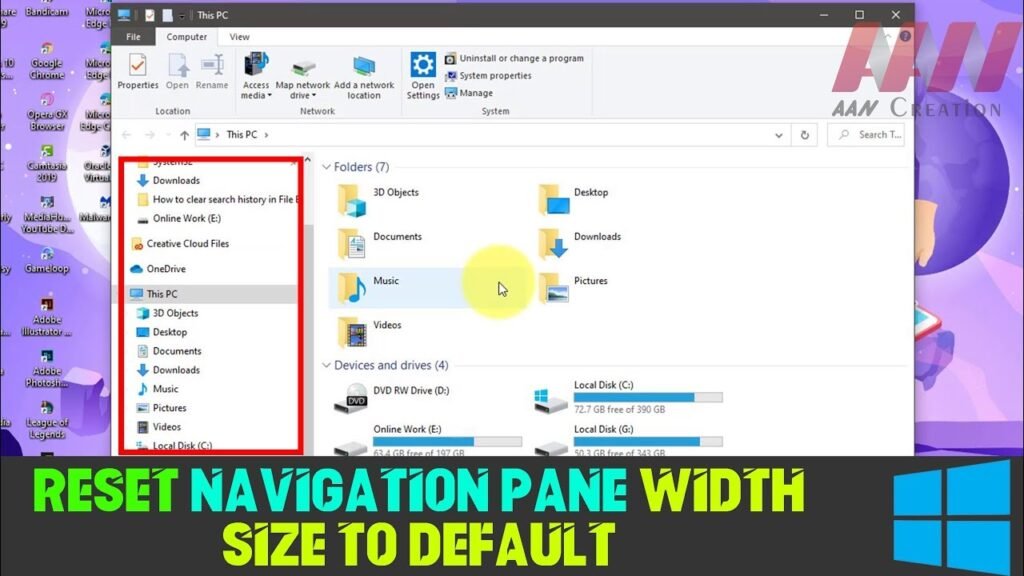
By default, Windows 11 File Explorer opens on Home (called Quick Access in older versions), which shows recent files and pinned folders. Many people prefer to see This PC straight away, with all drives and their free space. You can change this with one setting.
How to open File Explorer to This PC
- Open File Explorer (Windows + E).
- Click the three dots (…) on the toolbar and choose Options.
- On the General tab, find Open File Explorer to.
- Choose This PC from the drop-down list.
- Click OK.
Close File Explorer and open it again. It now starts on This PC.
Windows 10 steps
- Open File Explorer and click the View tab.
- Click Options on the right.
- Set Open File Explorer to to This PC and click OK.
Other choices in the same list
In recent Windows 11 versions the list can also include Home and your OneDrive folder. Pick whichever you use most.
Hide recent files from Home
If you keep Home but don’t want others to see your recent files, use the same General tab. Under Privacy, untick Show recently used files and Show frequently used folders, and click Clear to remove the current history.
Useful tips
- Press Windows + E to open File Explorer from anywhere.
- Pin your favourite folders by right-clicking them and choosing Pin to Quick access, so they appear in the left pane.
- Use File Explorer tabs (Ctrl + T) to keep This PC and other folders open side by side.
Frequently asked questions
Does this change where the taskbar icon opens?
Yes. The taskbar icon, Windows + E and the Start menu shortcut all follow this setting.
Will Windows updates reset it?
Normally no. If a big feature update ever resets it, just change the option again.
Can I open File Explorer to a specific folder?
The setting only offers Home, This PC and OneDrive. For another folder, create a desktop shortcut to that folder and pin it to the taskbar or Start menu.