
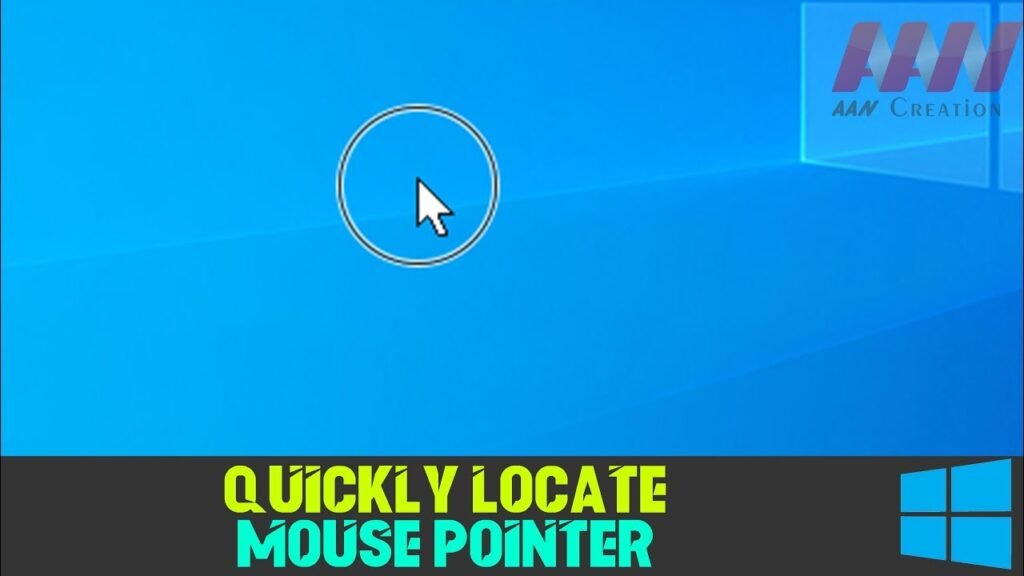

On a large monitor or with two screens, it’s easy to lose the mouse pointer. Windows has a hidden option that shows a circle around the cursor when you press Ctrl. You can also make the pointer larger or change its colour so it’s always easy to see.
Show the pointer location with the Ctrl key
- Open Settings > Bluetooth & devices > Mouse.
- Click Additional mouse settings. The classic Mouse Properties window opens.
- Open the Pointer Options tab.
- Tick Show location of pointer when I press the CTRL key.
- Click OK.
Now tap Ctrl and circles appear around the pointer. A quick way to open the same window: press Windows + R, type main.cpl and press Enter.
On Windows 10, go to Settings > Devices > Mouse > Additional mouse options. The rest is the same.
Make the pointer bigger and easier to see
- Open Settings > Accessibility > Mouse pointer and touch.
- Choose a Mouse pointer style, such as black, inverted or a custom colour like bright yellow.
- Drag the Size slider to make the pointer larger.
Other helpful options
- Pointer trails: in the Pointer Options tab, tick Display pointer trails to leave a short trail as the cursor moves.
- Find My Mouse: the free Microsoft PowerToys app includes this tool. By default you press Left Ctrl twice to dim the screen and spotlight the cursor.
- Mouse Highlighter: also in PowerToys, it shows a circle when you click, which is useful for screen recordings.
Frequently asked questions
Why doesn’t pressing Ctrl show the pointer?
Make sure the option is ticked and you clicked OK. Some games and remote desktop windows capture the Ctrl key, so the circle won’t appear inside them.
Will this interfere with Ctrl shortcuts like Ctrl + C?
No. The circle only appears when you press and release Ctrl on its own. Shortcuts keep working normally.
Can I change how fast the pointer moves too?
Yes. Go to Settings > Bluetooth & devices > Mouse and use the Mouse pointer speed slider. A slower speed can make the cursor easier to follow on a large screen.

