
A virtual machine (VM) lets you run Windows 11 inside a window on your current PC. It’s a safe way to test Windows 11, try new software or learn without touching your real system. Windows 11 needs TPM 2.0 and Secure Boot, so the VM must be set up correctly.
What you need
- A 64-bit PC with virtualization turned on in BIOS/UEFI (called Intel VT-x or AMD-V/SVM).
- At least 8 GB of RAM in your PC (4 GB goes to the VM) and about 64 GB of free disk space.
- The Windows 11 ISO file, downloaded from Microsoft’s official Windows 11 download page.
Option 1: Hyper-V (Windows Pro, Enterprise, Education)
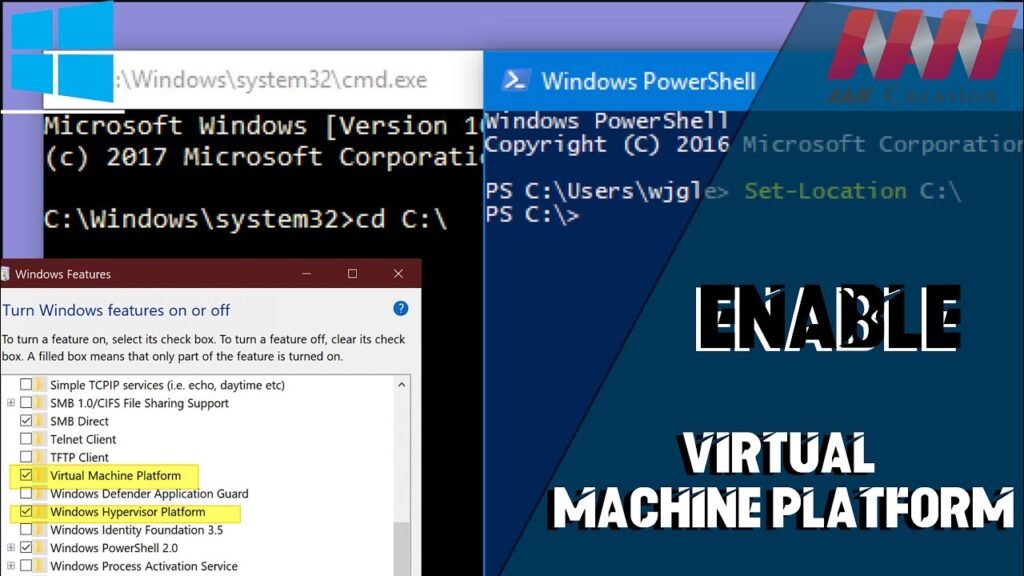
- Search for Turn Windows features on or off, tick Hyper-V, click OK and restart.
- Open Hyper-V Manager and choose Action > New > Virtual Machine.
- Choose Generation 2, give it at least 4096 MB of memory, connect it to the Default Switch and create a 64 GB virtual disk.
- Select Install an operating system from a bootable image file and pick the Windows 11 ISO. Finish the wizard.
- Before starting, right-click the VM, choose Settings > Security and tick Enable Trusted Platform Module. Make sure Secure Boot is on.
- Under Processor, set at least 2 virtual processors.
- Start the VM, press a key to boot from the ISO, and install Windows 11.
Option 2: VirtualBox (any Windows edition, free)
- Install the latest Oracle VirtualBox (version 7 or newer, which supports TPM 2.0).
- Click New, name the VM, select the Windows 11 ISO and choose the Windows 11 (64-bit) type.
- Give it 4096 MB of memory or more, 2 or more CPUs and a 64 GB disk.
- Check the VM’s Settings > System: EFI, Secure Boot and TPM 2.0 should be enabled. VirtualBox usually sets these for the Windows 11 type.
- Click Start and install Windows 11.
Useful tips
- A VM needs its own Windows license for long-term use. You can try it unactivated with some limits.
- Install VirtualBox Guest Additions after setup for better screen resolution and shared clipboard.
- Take a snapshot (checkpoint in Hyper-V) before big changes so you can roll back instantly.
Frequently asked questions
Why does setup say “This PC can’t run Windows 11”?
TPM, Secure Boot or memory is missing in the VM settings. Turn them on and give the VM at least 4 GB of RAM.
Can I run Hyper-V and VirtualBox together?
Yes, newer VirtualBox versions can run with Hyper-V enabled, though they may be slower.