
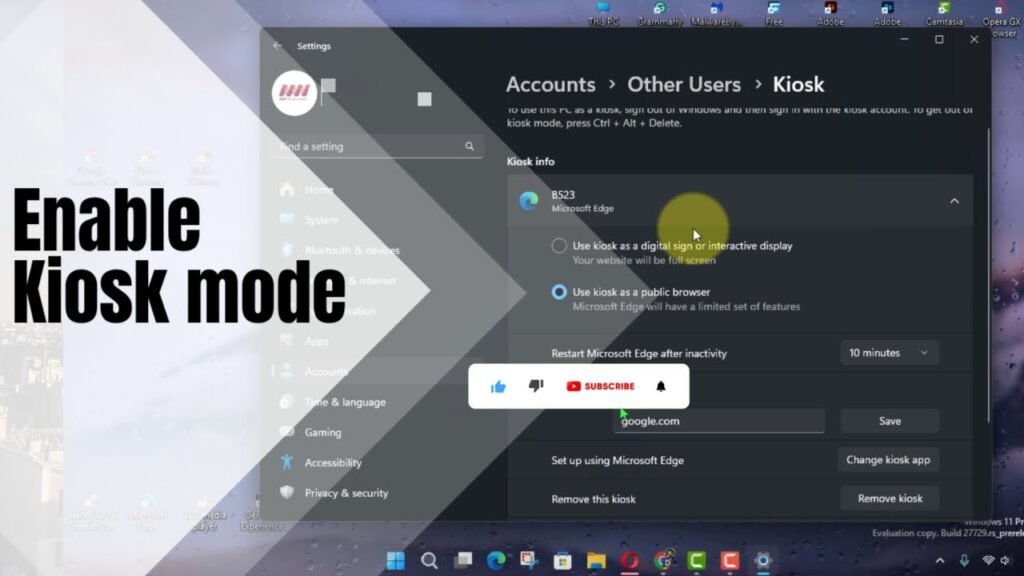

Kiosk mode locks a Windows 11 PC to a single app running full screen. It’s ideal for a reception check-in screen, a digital sign, a shop display or a computer for kids that should only run one learning app. Users can’t open other apps, the Start menu or settings.
Kiosk mode is available on Windows 11 Pro, Enterprise and Education. It’s not available on Windows 11 Home.
Set up a kiosk
- Sign in with an administrator account.
- Open Settings > Accounts > Other users.
- Next to Set up a kiosk, click Get started.
- Enter a name for the kiosk account, for example “Reception”, and click Next. Windows creates a new local account for the kiosk.
- Choose the app the kiosk will run. Only certain apps are listed, such as Microsoft Edge and some Microsoft Store apps.
- If you choose Microsoft Edge, select how it should work: as a digital sign or interactive display that shows one website, or as a public browser with limited features. Enter the website address and, if you like, an idle time after which the browser resets.
- Click Close to finish.
Start the kiosk
Sign out or restart the PC, then sign in to the kiosk account. On many setups the kiosk account signs in automatically. The chosen app opens full screen, and nothing else is available.
Leave kiosk mode
Press Ctrl + Alt + Delete. This takes you back to the sign-in screen, where you can choose your administrator account.
Change or remove the kiosk
- Sign in with your administrator account.
- Go to Settings > Accounts > Other users.
- Click the kiosk entry under Set up a kiosk.
- Choose a different app, or click Remove kiosk to delete it.
Tips
- Test the kiosk app before going live to make sure it doesn’t open pop-ups that need other apps.
- Set the PC to stay awake in Settings > System > Power & battery if it’s used as a display.
- For several allowed apps, businesses can use multi-app kiosk configurations with Microsoft Intune or other management tools.
Frequently asked questions
Can I use any app in kiosk mode?
No. The Settings method only offers supported apps, mainly Microsoft Edge and selected Microsoft Store apps. Regular desktop programs need advanced setup tools.
Is my admin account affected?
No. Kiosk mode only applies to the kiosk account. Your own account works normally.

