
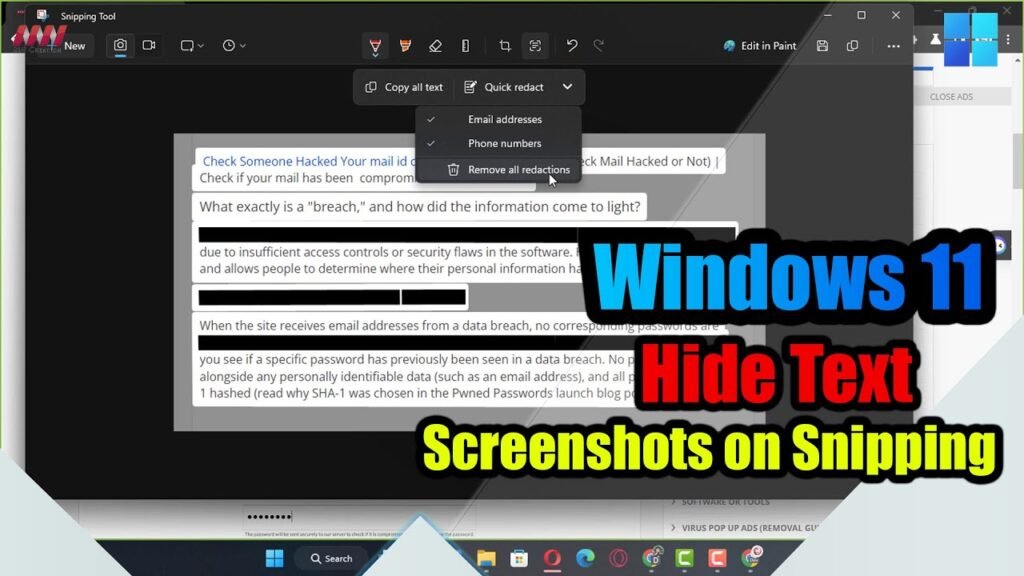

Before you share a screenshot, it’s easy to forget that it shows your email address, phone number or account details. The Windows 11 Snipping Tool can hide this text for you with built-in redaction. It covers the text with solid black boxes, which is safer than scribbling over it with a pen.
Hide emails and phone numbers automatically
- Press Windows + Shift + S, select the area and click the notification to open the screenshot in the Snipping Tool. You can also open an existing image with Ctrl + O.
- Click the Text actions button in the toolbar.
- Click Quick redact.
Snipping Tool finds email addresses and phone numbers and covers them. Click the small arrow next to Quick redact to choose which types of text it hides.
Hide any text you choose
- With Text actions on, select the words you want to hide by dragging over them.
- Right-click the selection and choose Redact text.
- Repeat for any other text, such as names, order numbers or addresses.
To undo a redaction, right-click it and choose Remove all redactions, or press Ctrl + Z.
Save the redacted screenshot
- Click Text actions again to leave text mode.
- Press Ctrl + S to save the image, or Ctrl + C to copy it.
The black boxes are part of the saved picture, so they can’t be removed by the person who receives it.
Hide things that aren’t text
Redaction only works on text Windows can read. To cover faces, QR codes, signatures or profile pictures, use the highlighter or pen at full thickness, or crop that part out with the crop tool.
Tips
- Zoom in to check that every part of the text is covered, especially small or light-coloured text.
- Look for private details in browser tabs, notifications and the address bar too.
- If Text actions doesn’t appear, update the Snipping Tool in the Microsoft Store.
Frequently asked questions
Can someone remove the black boxes later?
No. Once saved as an image, the boxes replace the original pixels. Only your unsaved copy can be undone.
Does Quick redact find everything private?
No. It looks for email addresses and phone numbers only. Always check the screenshot yourself before sharing.

