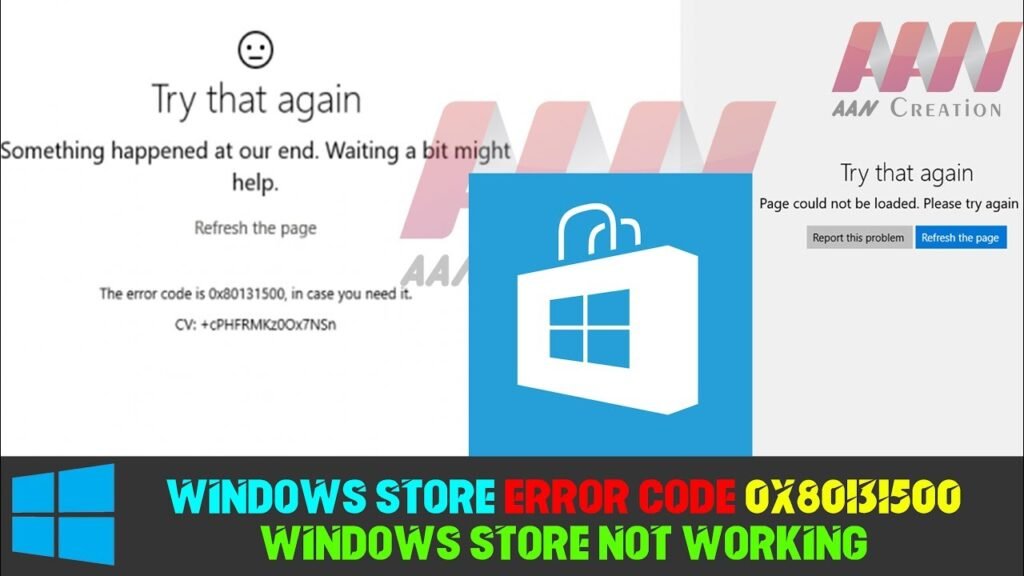

Error 0x80131500 appears when the Microsoft Store can’t connect to Microsoft’s servers. You might see “Something happened on our end” or “Try that again” with the code below. The Store opens but won’t load apps, updates or your library.
These fixes work on Windows 11 and Windows 10. Try them in order and test the Store after each one.
1. Check the date, time and region
- Go to Settings > Time & language > Date & time.
- Turn on Set time automatically and click Sync now.
- Open Settings > Time & language > Language & region and make sure Country or region is correct.
A wrong clock breaks secure connections, which is a common cause of this error.
2. Reset the Store cache
Press Windows + R, type wsreset.exe and press Enter. A blank window opens for a few seconds, then the Store starts again with a clean cache.
3. Turn off proxy and VPN
- Disconnect any VPN app.
- Go to Settings > Network & internet > Proxy.
- Make sure Use a proxy server is off under Manual proxy setup, unless your network needs it.
4. Change your DNS
A faulty DNS server can stop the Store from reaching Microsoft. In Settings > Network & internet, open your Wi-Fi or Ethernet connection properties, click Edit next to DNS server assignment and choose Manual. Enter a public DNS such as 1.1.1.1 or 8.8.8.8.
5. Repair or reset the Microsoft Store app
- Open Settings > Apps > Installed apps.
- Find Microsoft Store, click the three dots and choose Advanced options.
- Click Repair. If that fails, click Reset.
6. Re-register the Store
Open Terminal (Admin) and run:
Get-AppxPackage -AllUsers Microsoft.WindowsStore | Foreach {Add-AppxPackage -DisableDevelopmentMode -Register "$($_.InstallLocation)\AppXManifest.xml"}Restart your PC afterwards.
7. Update Windows
Go to Settings > Windows Update and install all updates, then try the Store again.
Frequently asked questions
Will resetting the Store delete my apps?
No. Resetting only clears the Store’s own data. Installed apps stay on your PC, and your purchases are linked to your Microsoft account.
Does signing out of the Store help?
Sometimes. Click your profile picture in the Store, sign out, restart the app and sign in again.