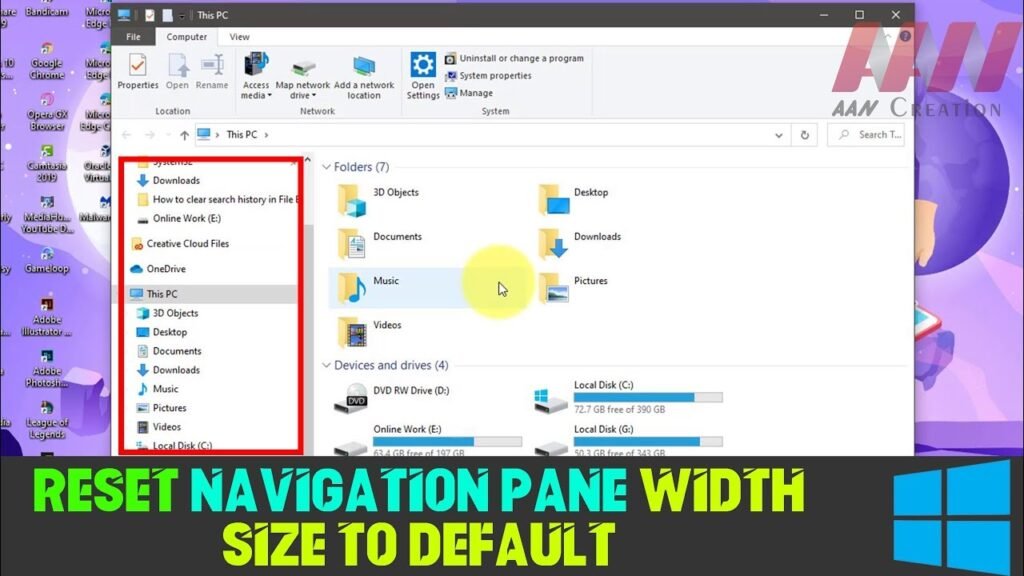
Windows 11 added a Gallery page to the File Explorer navigation pane. It shows your photos as a timeline, but if you never use it, it’s just one more item in the sidebar. There’s no Settings switch to hide it, but a small registry change removes it.
Before you start: create a restore point (search Start for Create a restore point). Change only the key described here.
Hide Gallery with the Registry Editor
- Press Windows + R, type
regeditand press Enter. Click Yes. - Go to:
HKEY_CURRENT_USER\Software\Classes\CLSID - Right-click CLSID and choose New > Key. Name it exactly:
If the key already exists, just select it.{e88865ea-0e1c-4e20-9aa6-edcd0212c87c} - Select the new key, right-click in the right pane and choose New > DWORD (32-bit) Value.
- Name it
System.IsPinnedToNameSpaceTreeand leave its value as 0. - Close Registry Editor and open a new File Explorer window. Gallery is gone. If not, restart Explorer from Task Manager or sign out and back in.
Do it with one command
You can create the same value from Command Prompt or Terminal (no admin needed, as it only changes your user account):
reg add "HKCU\Software\Classes\CLSID\{e88865ea-0e1c-4e20-9aa6-edcd0212c87c}" /v System.IsPinnedToNameSpaceTree /t REG_DWORD /d 0 /fBring Gallery back
Delete the key you created, or run:
reg delete "HKCU\Software\Classes\CLSID\{e88865ea-0e1c-4e20-9aa6-edcd0212c87c}" /fThen reopen File Explorer.
Tips
- Hiding Gallery doesn’t delete any photos. Your pictures stay in the Pictures folder and other folders.
- To choose which folders Gallery shows instead of hiding it, open Gallery and use the Collection menu at the top to add or remove folders.
- Large Windows updates can sometimes bring Gallery back. Just apply the change again.
Frequently asked questions
Does this affect other users on the PC?
No. The change is under HKEY_CURRENT_USER, so it only applies to your account.
Can I also hide Home from the sidebar?
Home is controlled separately. A different registry change is needed, so don’t reuse this key for it.