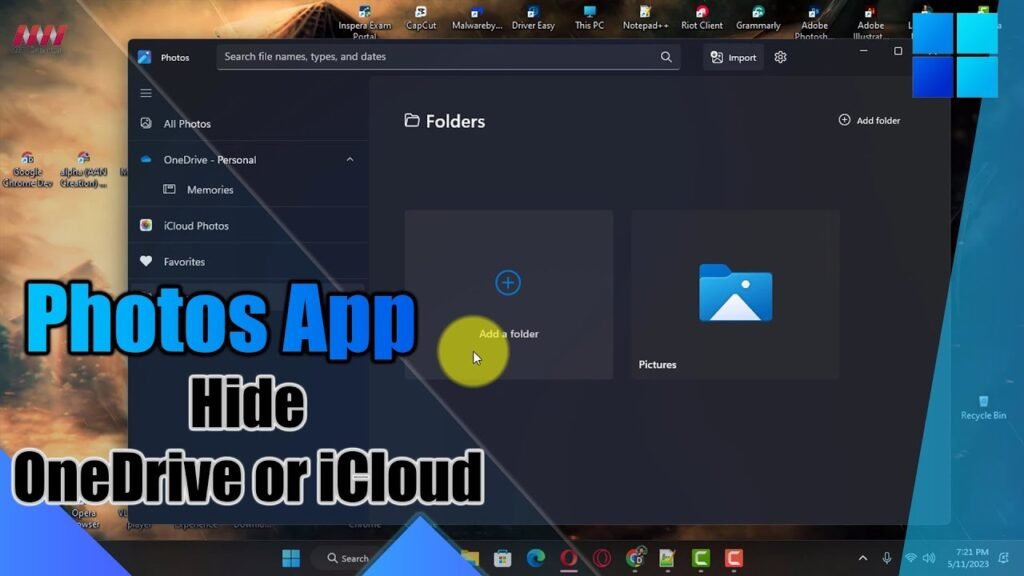

The Windows 11 Photos app shows pictures from OneDrive and, if installed, iCloud Photos alongside the photos on your PC. If you don’t want cloud photos mixed in, or the app is slow loading thousands of online pictures, you can hide these sources. Nothing is deleted from OneDrive or iCloud.
Hide OneDrive in the Photos app
- Open the Photos app.
- Click the gear icon to open Settings.
- Find the OneDrive section, which lists your connected account.
- Switch off the toggle to stop showing OneDrive photos, or choose the option to sign out or remove the account from Photos.
The OneDrive entry disappears from the left menu and the gallery shows only local pictures.
Hide iCloud Photos
iCloud appears in Photos only when the iCloud for Windows app is installed and Photos syncing is turned on.
- In the Photos app settings, look for an iCloud Photos option and switch it off, if your version offers one.
- If it doesn’t, open the iCloud app on your PC and turn off Photos there.
- To remove it completely, uninstall iCloud from Settings > Apps > Installed apps.
Hide a single source from the menu
You can also right-click OneDrive or iCloud Photos in the left navigation pane of the Photos app. Depending on your version, you may see an option to hide it from the pane.
The Photos app is updated through the Microsoft Store, so menus may move slightly. Update the app first if the options look different.
Choose which local folders appear
In the Photos app, click Folders in the left menu, then Add a folder to include folders on your PC, or right-click a folder to remove it. Removing a folder only hides it from Photos. The files stay on your disk.
Frequently asked questions
Will this delete my photos from OneDrive?
No. Hiding OneDrive in Photos only changes what the app displays. Your photos stay in OneDrive and in the OneDrive folder on your PC.
Can I turn it back on later?
Yes. Open Photos settings and switch OneDrive on again, or sign in with your account.