
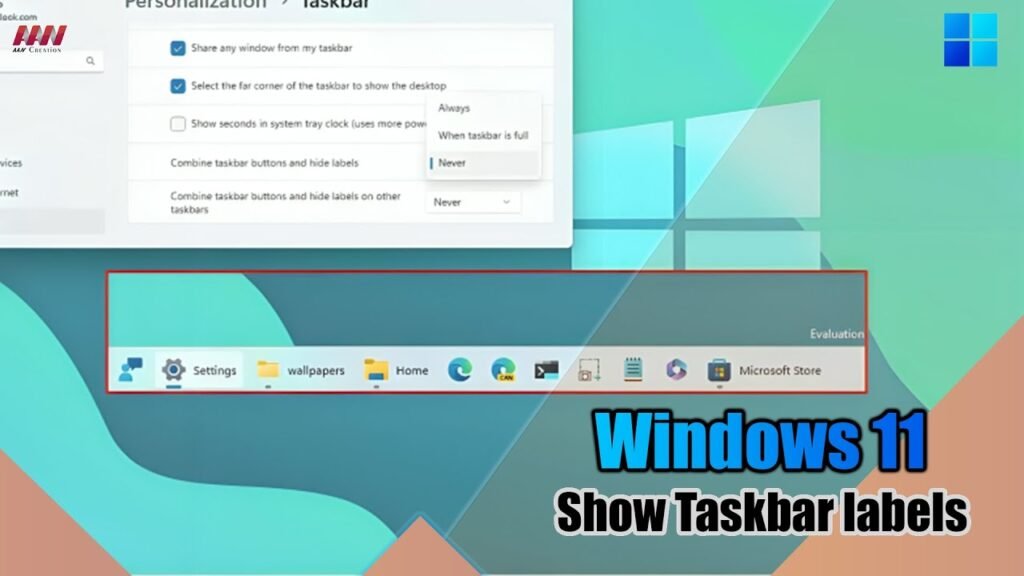

For a long time, Windows 11 only showed icons on the taskbar and grouped every window of the same app together. Since version 23H2, you can show labels with app and window names and stop grouping windows, much like Windows 10 allowed.
Turn on taskbar labels
- Right-click an empty part of the taskbar and choose Taskbar settings. You can also go to Settings > Personalization > Taskbar.
- Scroll down and click Taskbar behaviors to expand it.
- Find Combine taskbar buttons and hide labels.
- Choose one of the options:
- Always: icons only, windows grouped (the original Windows 11 style).
- When taskbar is full: labels shown until space runs out, then buttons combine.
- Never: every window gets its own button with a label.
The taskbar changes immediately.
Settings for multiple monitors
Under the same section, use Combine taskbar buttons and hide labels on other taskbars to choose a different style for your second screen. Also check Show my taskbar on all displays and When using multiple displays, show my taskbar apps on to decide where app buttons appear.
If you don’t see the option
- Check your version: press Windows + R, type
winverand press Enter. You need 23H2 or newer. - Install the latest updates in Settings > Windows Update.
Tips
- When taskbar is full is a good balance on small laptop screens.
- Labels make it easier to tell several File Explorer or browser windows apart.
- Move icons to the left with Taskbar behaviors > Taskbar alignment > Left for a more classic look.
Frequently asked questions
Can I make the taskbar smaller in Windows 11?
Not with a built-in size setting in most versions. Recent builds offer an option to show smaller taskbar buttons in Taskbar behaviors, but full size control isn’t available.
Does this work on Windows 10?
Windows 10 already has this. Go to Settings > Personalization > Taskbar and change Combine taskbar buttons.

