
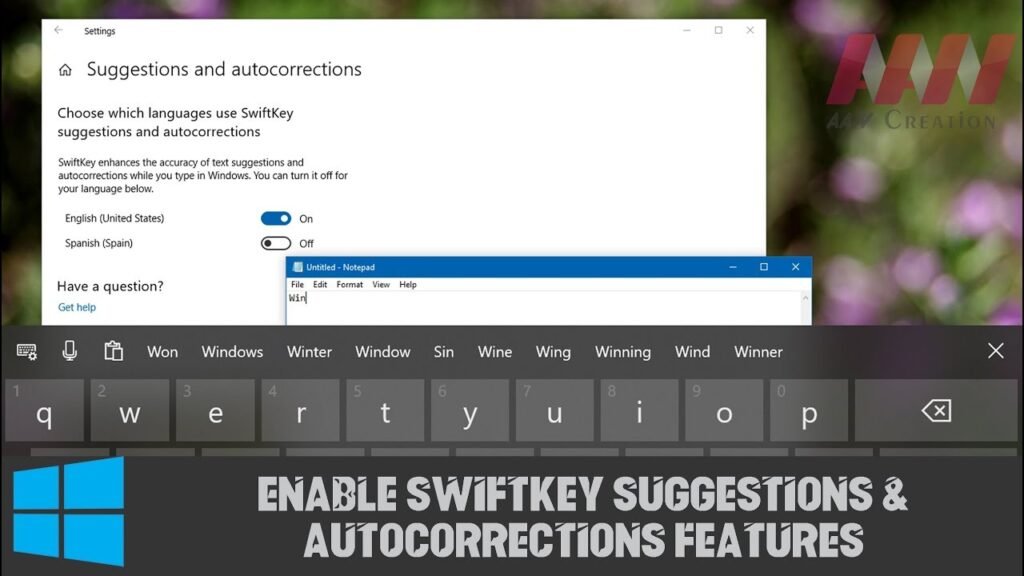

Windows uses SwiftKey technology to suggest words while you type and to fix spelling mistakes automatically. On touch keyboards this is on by default, but for a normal physical keyboard you have to turn it on yourself. It works in almost every app, including Notepad and web browsers.
Turn on text suggestions on Windows 11
- Open Settings with Windows + I.
- Go to Time & language > Typing.
- Turn on Show text suggestions when typing on the physical keyboard.
- Optionally, turn on Multilingual text suggestions if you type in more than one language.
Start typing in any text box. A small bar with up to three suggested words appears near the cursor. Press the Up arrow to move into the suggestions, use Left or Right to pick one, then press Enter. Press Esc to hide the bar.
Turn on autocorrect
- Stay in Settings > Time & language > Typing.
- Turn on Autocorrect misspelled words and Highlight misspelled words.
Note that in some versions these two options only apply to the touch keyboard. Many apps, such as Word and your browser, also have their own spell checker.
On Windows 10
Go to Settings > Devices > Typing. Under Hardware keyboard, turn on Show text suggestions as I type and, if you like, Autocorrect misspelled words I type.
Tips
- Suggestions learn from what you type. You can view and clear typing insights in Settings > Time & language > Typing > Typing insights.
- If suggestions cover part of an app, turn them off again with the same switch.
- Make sure the right language is installed in Settings > Time & language > Language & region, or suggestions may not match.
Frequently asked questions
Why don’t I see suggestions in some apps?
Some programs use their own text boxes that Windows can’t add suggestions to. Older desktop apps and games often don’t show them.
Does this send my typing to Microsoft?
Suggestions are created on your PC. If you turned on optional diagnostic data, some typing data may be shared to improve the feature. You can control this in Settings > Privacy & security > Diagnostics & feedback.

