Windows 11 comes with good built-in protection, but some of the most useful options are switched off by default or easy to miss. These four settings in Windows Security make your PC much harder to attack, and they cost nothing.
Open Windows Security by searching for it in the Start menu.
1. Reputation-based protection
This warns you about unknown apps, malicious websites and potentially unwanted programs (PUA) such as bundled adware.
- Go to App & browser control > Reputation-based protection settings.
- Turn on Check apps and files, SmartScreen for Microsoft Edge and Potentially unwanted app blocking.
- Under Potentially unwanted app blocking, tick both Block apps and Block downloads.
2. Controlled folder access (ransomware protection)
This stops untrusted apps from changing files in your important folders, such as Documents and Pictures.
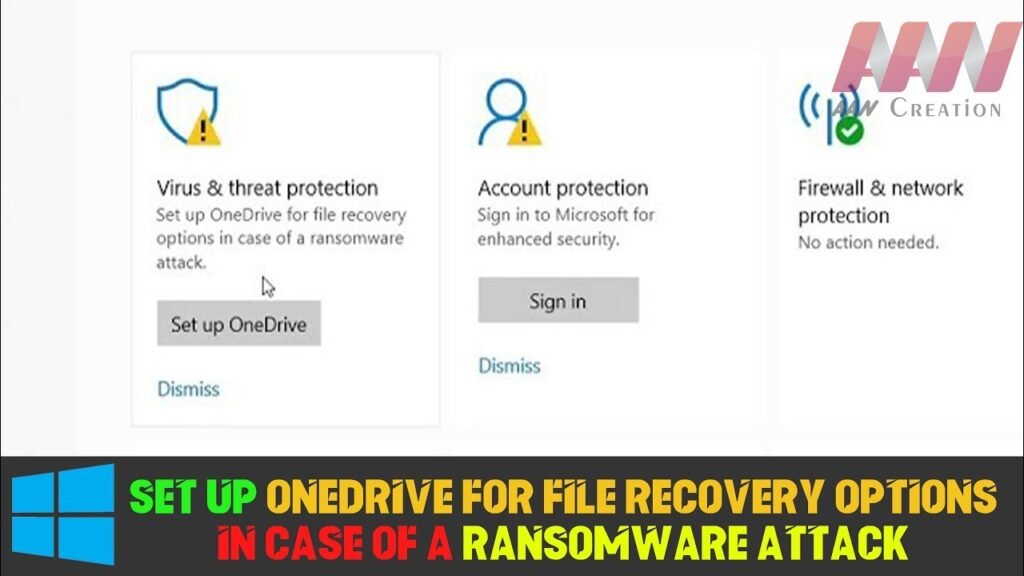
- Go to Virus & threat protection > Ransomware protection > Manage ransomware protection.
- Turn on Controlled folder access.
- If a trusted app is blocked, click Allow an app through Controlled folder access and add it.
3. Tamper protection
This stops malware from turning off your antivirus behind your back.
- Go to Virus & threat protection > Manage settings.
- Make sure Tamper Protection is On. While you’re there, check that Real-time protection and Cloud-delivered protection are on too.
4. Core isolation
Core isolation uses virtualisation to protect the most sensitive parts of Windows.
- Go to Device security > Core isolation details.
- Turn on Memory integrity if your drivers support it. Windows will list any incompatible drivers.
- Turn on Microsoft Vulnerable Driver Blocklist if it’s available.
- Restart your PC.
Tips
- Keep Windows and your apps updated. Many attacks use old, already-fixed bugs.
- Run a Quick scan now and then from Virus & threat protection.
Frequently asked questions
Will these settings slow down my PC?
For most PCs the effect is small. Memory integrity can reduce performance slightly in some games on older hardware.
Do I still need a third-party antivirus?
For most home users, Microsoft Defender with these settings on gives solid protection. A paid antivirus is optional.