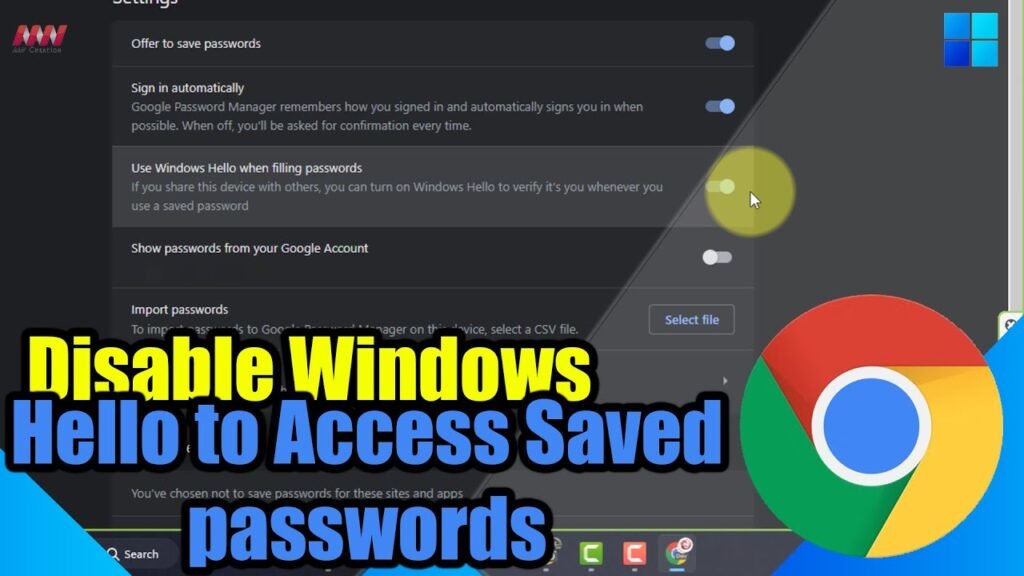

On Windows, Google Chrome can use Windows Hello to protect your saved passwords. When it’s on, Chrome asks for your PIN, fingerprint or face before it fills in a password. This is a good safety layer on a shared PC, but on your own computer the extra prompt can get annoying.
Here’s how to switch it off or back on.
Turn off Windows Hello for password filling
- Open Chrome, click the three-dot menu in the top-right corner and choose Passwords and autofill > Google Password Manager.
- In Google Password Manager, click Settings in the left menu.
- Find the option Use Windows Hello when filling passwords.
- Turn the switch off. Windows asks you to confirm with your PIN, face or fingerprint one last time.
You can also type chrome://password-manager/settings in the address bar to jump straight there.
From now on, Chrome fills saved passwords without a Windows Hello prompt. To turn the protection back on, follow the same steps and switch it on.
When Windows Hello still appears
Even with the option off, Chrome may still ask you to verify yourself when you want to see, copy or export a saved password in Google Password Manager. That’s normal and protects your passwords if someone else uses your PC.
If the option is missing
- Update Chrome: open the three-dot menu, then Help > About Google Chrome.
- Make sure Windows Hello is set up in Settings > Accounts > Sign-in options. The option only appears when a PIN, fingerprint or face sign-in is configured.
- On work or school devices, the setting may be controlled by your organisation.
Should you turn it off?
If you’re the only person who uses your PC and it locks when you step away, turning it off is reasonable. If other people use your computer, keep it on. It stops someone from signing in to your accounts just because Chrome is open.
Frequently asked questions
Does this delete my saved passwords?
No. It only changes whether Chrome asks for Windows Hello before filling them. All your saved passwords stay in Google Password Manager.
Does the setting sync to my other computers?
It’s a device setting, so you need to change it on each Windows PC where you use Chrome.