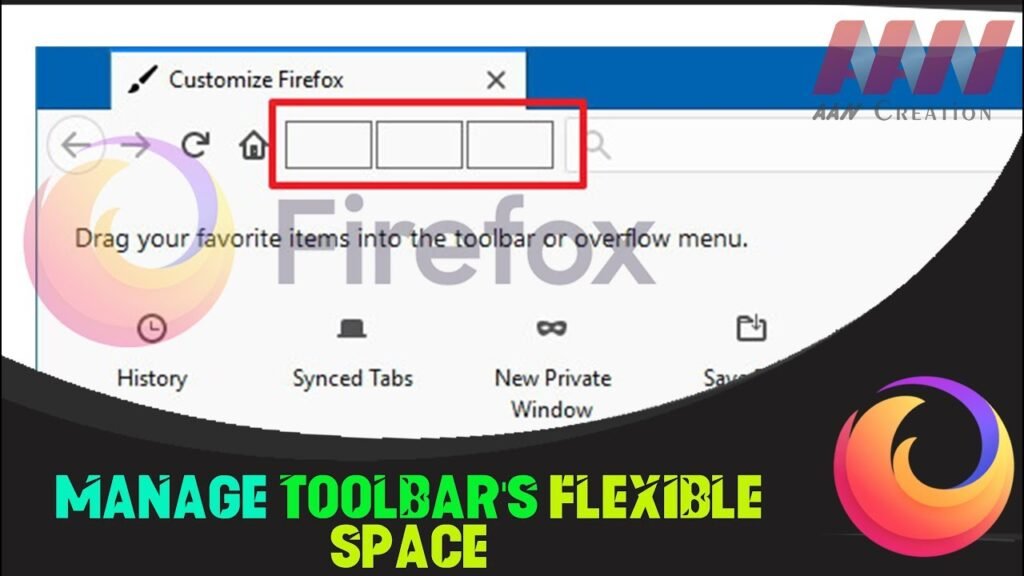

Firefox lets you rearrange its toolbar. One handy item is Flexible Space: a stretchable gap you can put between buttons. It is useful for centering the address bar, separating groups of buttons, or giving the window more room to drag.
Here is how to add, move and remove flexible space, and how to undo your changes.
How to open Customize Toolbar
- Click the menu button (three lines) in the top-right corner of Firefox.
- Choose More tools > Customize toolbar.
You can also right-click an empty area of the toolbar and choose Customize Toolbar.
Add flexible space
- In the Customize page, find the Flexible Space item in the list of available items.
- Drag it onto the toolbar, to the spot where you want the gap.
- You can add more than one. For example, put one on each side of the address bar to center it.
- Click Done to save.
Move or remove flexible space
- Open Customize toolbar again. Flexible spaces now show as visible boxes on the toolbar.
- To move one, drag it to a new place on the toolbar.
- To remove one, drag it from the toolbar back into the list of items.
- Click Done.
Firefox adds two flexible spaces on either side of the address bar by default. If your address bar looks narrow, removing them gives it more width.
Reset the toolbar
If the toolbar gets messy, open Customize toolbar and click Restore Defaults at the bottom. Everything goes back to how it was when Firefox was installed.
Useful tips
- While customizing, you can also drag buttons such as Downloads, Print or History onto the toolbar.
- Use the Density option at the bottom of the Customize page to make the toolbar more compact.
- Tick Title Bar at the bottom if you want the classic window title bar back.
Frequently asked questions
Why don’t I see the flexible space on the toolbar normally?
Flexible space is invisible during normal use. It only appears as a box while you are in Customize mode.
Will my toolbar layout sync to other computers?
Toolbar layout can sync with a Firefox account if customization syncing is enabled, but it may look different on screens of other sizes.