
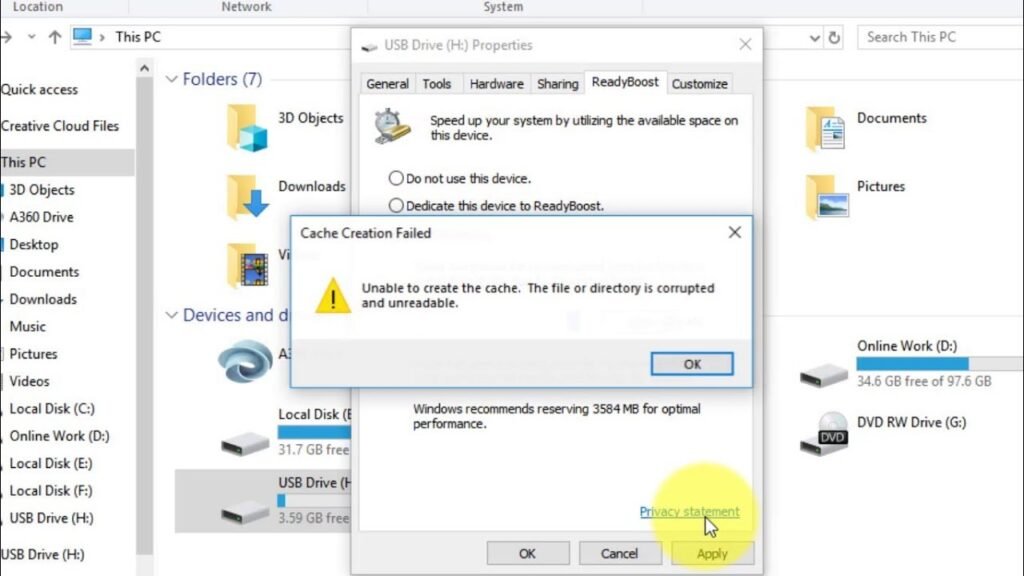

ReadyBoost lets Windows use a USB flash drive or SD card as extra cache to speed up a PC with a slow hard drive. Sometimes it fails with the message “Unable to create the cache: The file or directory is corrupted and unreadable.” This means the file system on the USB drive is damaged.
The fix is to repair the drive, or reformat it, and then turn ReadyBoost on again.
Step 1: Repair the drive with CHKDSK
- Plug in the USB drive and open File Explorer. Note its drive letter, for example E:.
- Open the Start menu, search for Command Prompt, right-click it and choose Run as administrator.
- Type
chkdsk E: /f(replace E with your drive letter) and press Enter. - Wait until the scan finishes and fixes any errors.
You can also right-click the drive in File Explorer, choose Properties > Tools and click Check under Error checking.
Step 2: Reformat the drive if errors remain
Formatting erases everything on the drive, so copy any files you need first.
- In File Explorer, right-click the USB drive and choose Format.
- Choose NTFS as the file system. NTFS supports larger ReadyBoost caches than FAT32.
- Leave Quick Format ticked and click Start.
Step 3: Turn ReadyBoost on again
- Right-click the USB drive and choose Properties.
- Open the ReadyBoost tab.
- Choose Dedicate this device to ReadyBoost, or Use this device and set the amount of space.
- Click OK. Windows creates a file called ReadyBoost.sfcache on the drive.
Useful tips
- Always use Eject before unplugging the drive. Pulling it out suddenly is the most common reason the cache gets corrupted.
- If the ReadyBoost tab says your PC is fast enough, your system drive is an SSD. ReadyBoost gives no benefit there.
- If the drive keeps getting corrupted, it may be failing. Try another USB drive.
Frequently asked questions
Does ReadyBoost still work on Windows 11?
Yes, the ReadyBoost tab is still in the drive properties. It only helps on PCs that use a traditional hard drive and have little RAM.
Is ReadyBoost better than adding RAM?
No. Adding real RAM or switching to an SSD gives a much bigger speed boost. ReadyBoost is a cheap temporary help.
